

Projects and scans
Review Project Pages, run scans, understand crawler behavior and interpret skipped or blocked pages.
Customers running scans and technical reviewers
Feature availability
Product, package, provider and deployment boundaries for this page.
- Available from
- Current documentation
- Deployment modes
- cloud
Product screenshots
Current customer-safe screenshots are generated from the application so examples do not drift from the product.
Project setup path
Use this section when a customer is creating a project, proving authorization, reviewing discovered Project Pages, running a scan or interpreting skipped pages. 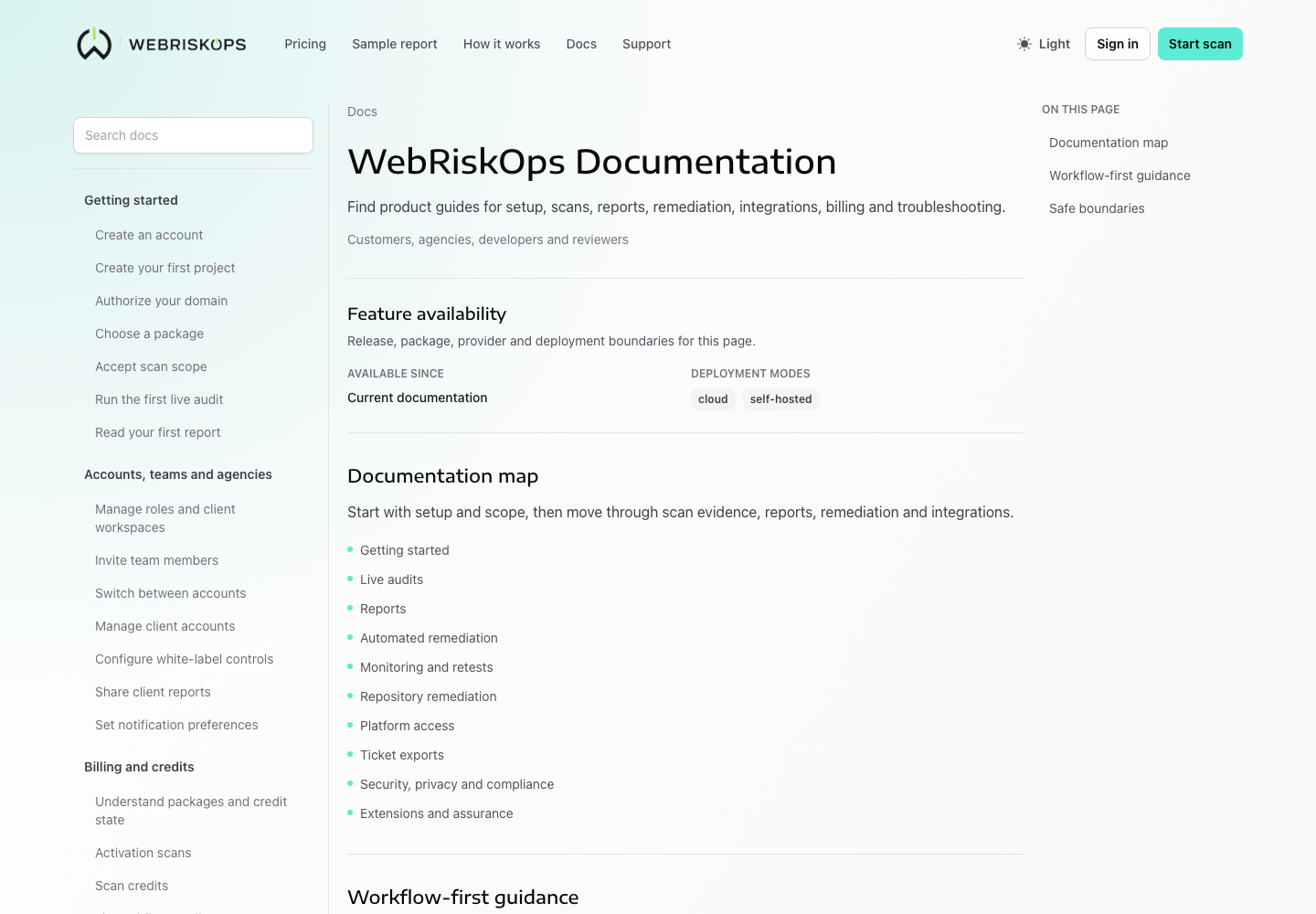
- Supported public pages
- Unsupported targets
- Public-page-only limits
- Project Pages review
- Project page boundaries
- Ownership proof
- Run scans from Project Pages
- Crawler behavior
- Browser rendering
- Data collected and excluded
- Screenshots and HTML snapshots
- Console and network evidence
- Privacy redaction
- Failure and skipped-page meanings
Scan evidence path
Open [Projects](/projects), choose the owned project, review Project Pages, then start the scan only when plan, authorization and page boundary states are ready.
- Crawler behavior
- Browser rendering
- Data collected and excluded
- Screenshots and HTML snapshots
- Console and network evidence
- Privacy redaction
- Failure and skipped-page meanings
What to open next
- Use [Project Pages review](/docs/projects/accepted-scan-scope) before starting a private scan.
- Use [Run scans from Project Pages](/docs/projects/scan-scope-and-live-audits) when the customer asks what to click next.
- Use [Failure and skipped-page meanings](/docs/projects/failure-and-skipped-page-meanings) when a page is skipped or blocked.
Was this page helpful?
Feedback goes into the product documentation review queue.