

Billing and account entitlements
Review account entitlements, credits, subscriptions, invoices, refunds, disputes and unavailable payment states.
Account owners and finance reviewers
Feature availability
Product, package, provider and deployment boundaries for this page.
- Available from
- Current documentation
- Providers
- paddle
- Deployment modes
- cloud
Product screenshots
Current customer-safe screenshots are generated from the application so examples do not drift from the product.
Billing workspace
Use this section when the customer needs to understand what can be bought now, what is already available on the account, and why a billing action is disabled. Billing shows account entitlements; the project page shows whether a specific project service can use them. The authenticated billing workspace is [Billing](/billing). Public comparison starts at [Pricing](/pricing), and public checkout links use `/checkout/{plan}` only for paid plans that are available now. 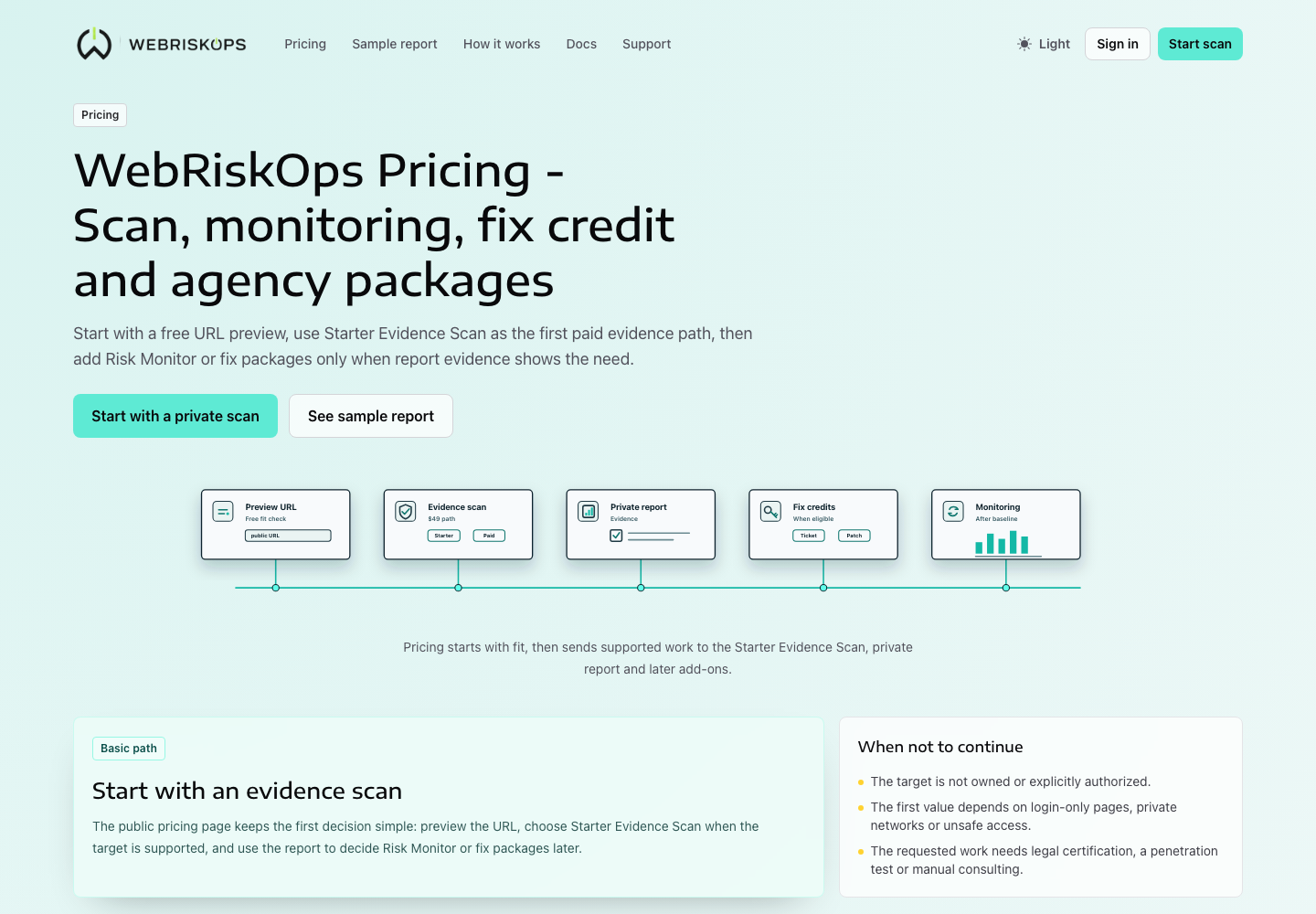 Open [Billing](/billing) and review these areas in order:
- Payment provider shows whether Paddle checkout and webhooks are ready.
- Account entitlements shows the current plan, included credits, monitoring coverage, team/client allowance and the project services currently depending on them.
- Billing account status shows subscription state, credit balances, transactions, refunds, service credits and provider evidence.
- Upgrade trigger shows the next useful subscription step when the current plan is too small.
- Extension add-ons shows extension billing state separately from core subscription credits.
- Project dependencies shows per-project eligibility and the next automated action, but it does not replace the project page.
Billing decisions
The billing page should lead to one of these decisions without a sales call: If a control is disabled, read the disabled reason before trying another plan or upgrade. The common next actions are: finish project setup, review Project Pages, verify the domain, wait for payment confirmation, switch to the owning account, choose an available plan, return to project Actions, or stop because the requested target is unsupported.
- Start with Free when the customer only needs proof that concrete issues exist before paying.
- Choose Basic when one project needs recurring scan evidence and a private report path.
- Choose Plus after a baseline exists and weekly checks, alerts and broader scan allowance are needed.
- Choose Pro when the account needs remediation automation, team/client workflow, white-label delivery or larger pooled credits.
- When credits are exhausted, upgrade, reduce the requested work or wait for renewal instead of buying a separate public pack.
- Download the invoice or review provider evidence from a provider-confirmed transaction.
- Read renewal and provider-confirmed subscription state before changing plan access.
What to open next
- Start with [Understand entitlements and services](/docs/billing/packages-and-credit-state) when account coverage or project-service state is unclear.
- Use [Activation scans](/docs/billing/activation-scans) before the first private paid scan.
- Use [Invoices and receipts](/docs/billing/invoices-and-receipts) when finance needs a provider-confirmed record.
- Use [Refunds, disputes and service credits](/docs/billing/refunds-disputes-and-service-credits) before requesting a refund or service credit.
- Use [Cancellations and renewal](/docs/billing/cancellations-and-renewal) before stopping subscription renewal.
Related documentation
Was this page helpful?
Feedback goes into the product documentation review queue.